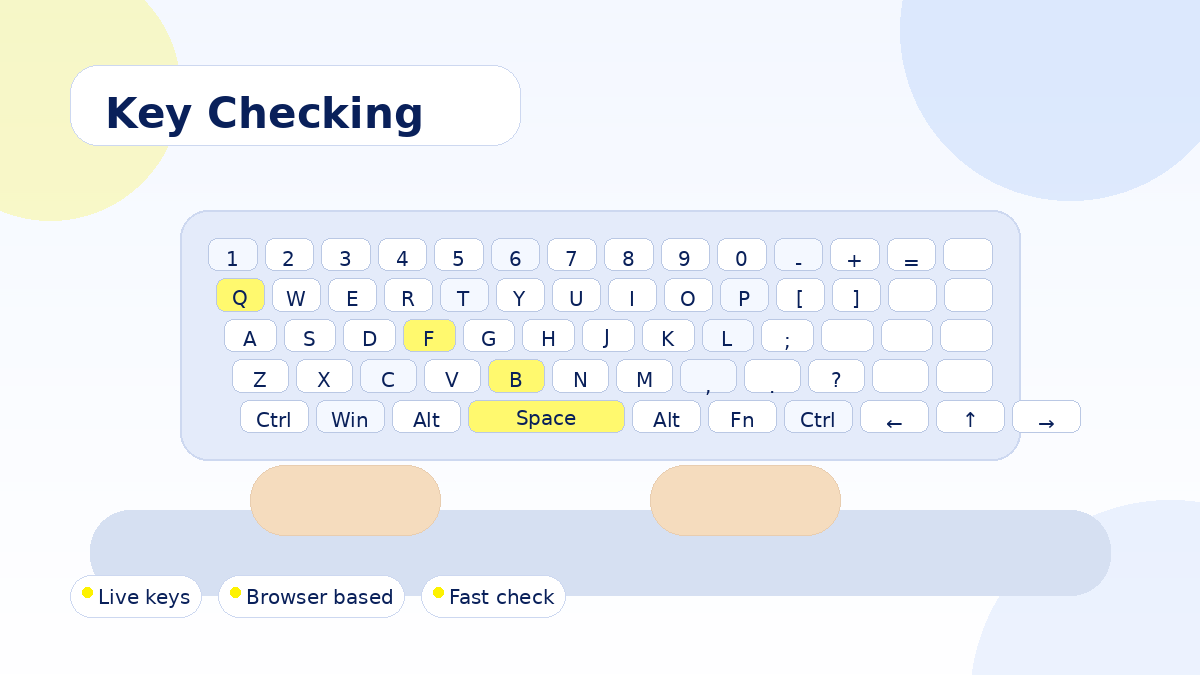
How to Use Keyboard Tester for Key Checking explains a practical way to use Keyboard Tester for real keyboard checks. The goal is to help you confirm whether your browser receives the right input from letters, numbers, modifiers, arrows, function keys, and the number pad.
Many keyboard problems feel random at first. A key may work in one app but not another, a laptop key may repeat, or a shortcut may fail during daily work. A visual test gives you a clear starting point before you change settings, replace hardware, or contact support.
Why How to Use Keyboard Tester Matters
How to Use Keyboard Tester matters because typing accuracy affects almost every digital task. Students need reliable input for assignments and exams. Developers need working shortcuts and command keys. Writers need consistent letters, punctuation, Backspace, and Enter. Gamers need movement keys and modifiers to respond without delay.
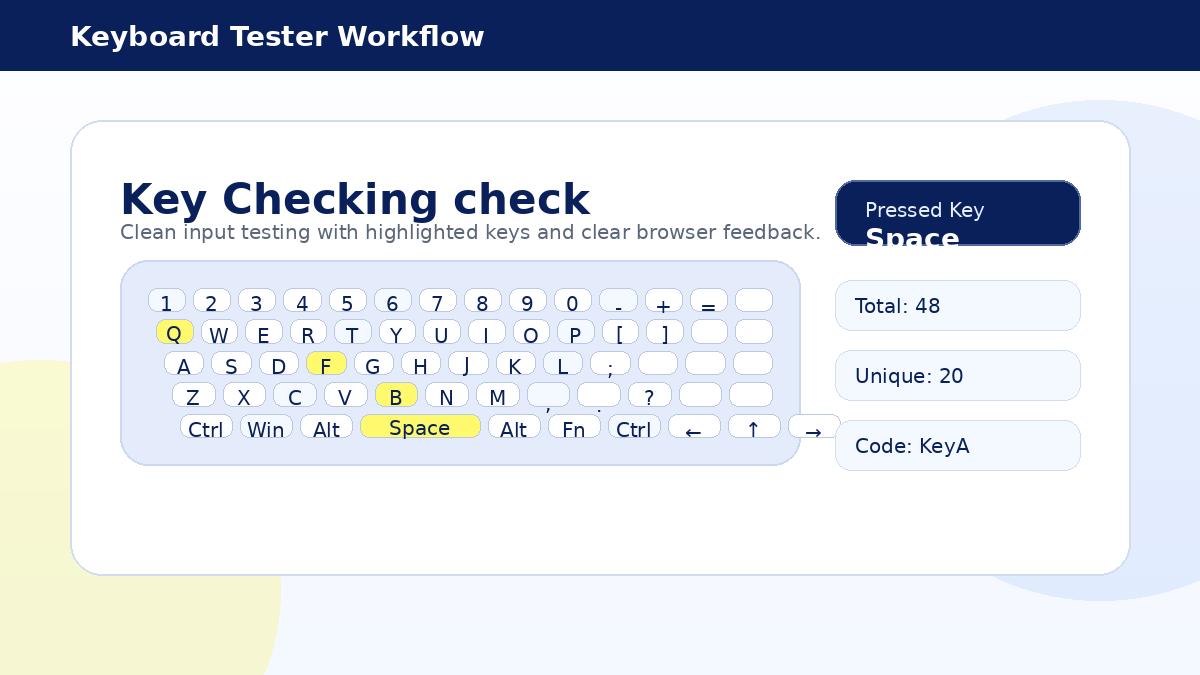
The online tester is not a repair tool. It is a clear input checking tool. When you press a key, the browser reports a key code, and the matching key on the visual board lights up. This helps you compare what you pressed with what the browser detected.
Before You Start Testing
- Close apps that may capture global shortcuts or macro keys.
- Use a modern browser such as Chrome, Edge, Firefox, or Safari.
- Select Windows or macOS layout so labels match your keyboard.
- Do not type passwords, payment details, or private messages into the test box.
- Use a harmless sample sentence when checking repeated letters and spacing.
Step by Step Testing Process
1. Open the Live Keyboard Tester
Start from the main tool section and keep the visual keyboard visible. The layout includes common desktop keys, laptop friendly controls, arrows, function keys, and numeric keypad input. If you are using a smaller screen, scroll sideways inside the keyboard area to view all keys.
2. Check Main Typing Keys
Press A through Z, number keys, punctuation keys, and Space. Each key should light up once the browser detects it. If a key does not respond, press it again gently and compare it with a nearby working key. A single missed press can happen, but repeated misses are worth investigating.
3. Check Control Keys
Test Shift, Ctrl, Alt, Windows, Command, Option, Tab, Caps Lock, Enter, and Backspace. Modifier keys can behave differently because browsers and operating systems reserve some shortcuts. For example, the browser may capture a shortcut before the web page can display it.
4. Check Arrow and Number Pad Keys
Arrow keys are important for spreadsheets, text editing, coding, and games. Number pad keys are important for finance tasks and data entry. If the number pad does not respond as expected, confirm Num Lock status and test again.
5. Review Key Codes and Counts
The tool shows total presses, unique presses, and the last key code received. These details help identify whether the same key is repeatedly detected or whether different physical keys send unexpected codes.
Common Results and What They Mean
If a key lights up correctly, your browser is receiving that input. If a different key lights up, the keyboard layout, language setting, firmware, or remapping software may be changing the input. If no key lights up, the issue may be hardware failure, system level blocking, a browser limitation, or another application capturing that key first.
Repeated characters can suggest a sticky switch, debris under a keycap, accidental long press behavior, or operating system repeat settings. Test the same key in the typing box and another text editor to compare results.
Best Practices for Reliable Checks
- Test slowly first, then repeat the same row faster.
- Compare left and right modifier keys separately.
- Use the reset button between different test rounds.
- Check the same keyboard on another browser when results look unusual.
- Test an external keyboard on the same device to compare hardware behavior.
- Take notes before changing driver, language, or accessibility settings.
Device Compatibility Notes
Keyboard Tester works best with physical keyboards on desktop and laptop browsers. Android and iOS can support external keyboards, but mobile browsers may limit some events. Mac keyboards may send labels differently from Windows keyboards, which is why the macOS tab is useful for users checking Command, Option, Control, Return, and Delete.
Gaming keyboards, mechanical keyboards, and wireless keyboards normally send standard key events for common keys. Dedicated macro keys may require manufacturer software because browsers do not always receive those custom inputs.
Advanced Checking Workflow
For a more complete result, test the keyboard in three rounds. First, press every key once from left to right. This confirms basic recognition. Second, type a short sample paragraph to check natural typing rhythm, repeated letters, punctuation, and spacing. Third, test practical combinations such as Shift with letters, Ctrl with common shortcuts, Alt combinations, and arrow navigation. This method gives a balanced view of single key input and real world typing behavior.
If you are checking a used laptop or refurbished keyboard, repeat the test after a few minutes. Some faults appear only after a key warms up, after repeated use, or when the keyboard deck flexes slightly. A repeated test is also helpful after cleaning because moisture, dust, or loose debris can affect results differently over time.
Keyboard Settings That Can Affect Results
Operating system settings can change how input feels. Keyboard repeat delay, repeat rate, sticky keys, filter keys, language layouts, accessibility shortcuts, and vendor utilities may all affect the final result. A key can be physically healthy while still behaving strangely because a setting changes how the system sends input to the browser.
- Check language layout when symbols do not match the printed keycap.
- Review accessibility settings when modifier keys behave like they stay pressed.
- Disable unnecessary macro software during a clean troubleshooting session.
- Restart the browser after major keyboard driver or layout changes.
- Compare the same test in another user profile when system settings are uncertain.
How to Record Useful Findings
When reporting a problem to a repair shop, seller, support team, or workplace IT department, write down the exact key name, what you expected, what the tool showed, and whether the issue happens in another application. Clear notes reduce confusion and make it easier for someone else to reproduce the issue.
A useful report might say that the left Shift key does not light up in the tester, the right Shift key works normally, and the left Shift key also fails in a text editor. That is more actionable than simply saying the keyboard is broken.
Safety and Privacy Notes
The page only needs keyboard input to show visual feedback. Even so, a good safety habit is to type only sample text. Do not enter passwords, recovery codes, bank details, personal conversations, or confidential work information into a public page. For sensitive environments, use the optional offline package locally.
When to Seek Repair Support
If a key fails in Keyboard Tester and also fails in other applications, the problem may be physical. Cleaning may help if debris is visible, but do not force keycaps on laptops unless you know the keyboard design. If several keys in one area fail, a connector, liquid damage, or keyboard matrix problem may be involved.
If the key works in Keyboard Tester but not inside a specific app, the app settings or shortcut preferences are more likely to be the cause. Check app shortcuts, language layouts, accessibility settings, and input method settings before replacing hardware.
Final Advice
How to Use Keyboard Tester should be simple, consistent, and repeatable. Run one slow pass, one normal typing pass, and one shortcut pass. The results will give you a clearer view of your keyboard condition and help you decide the next practical step.
Use the live tool whenever you need a quick input check, and read related Guide posts for deeper help with compatibility, troubleshooting, safety, and daily typing checks.